
About Us
Who We Are
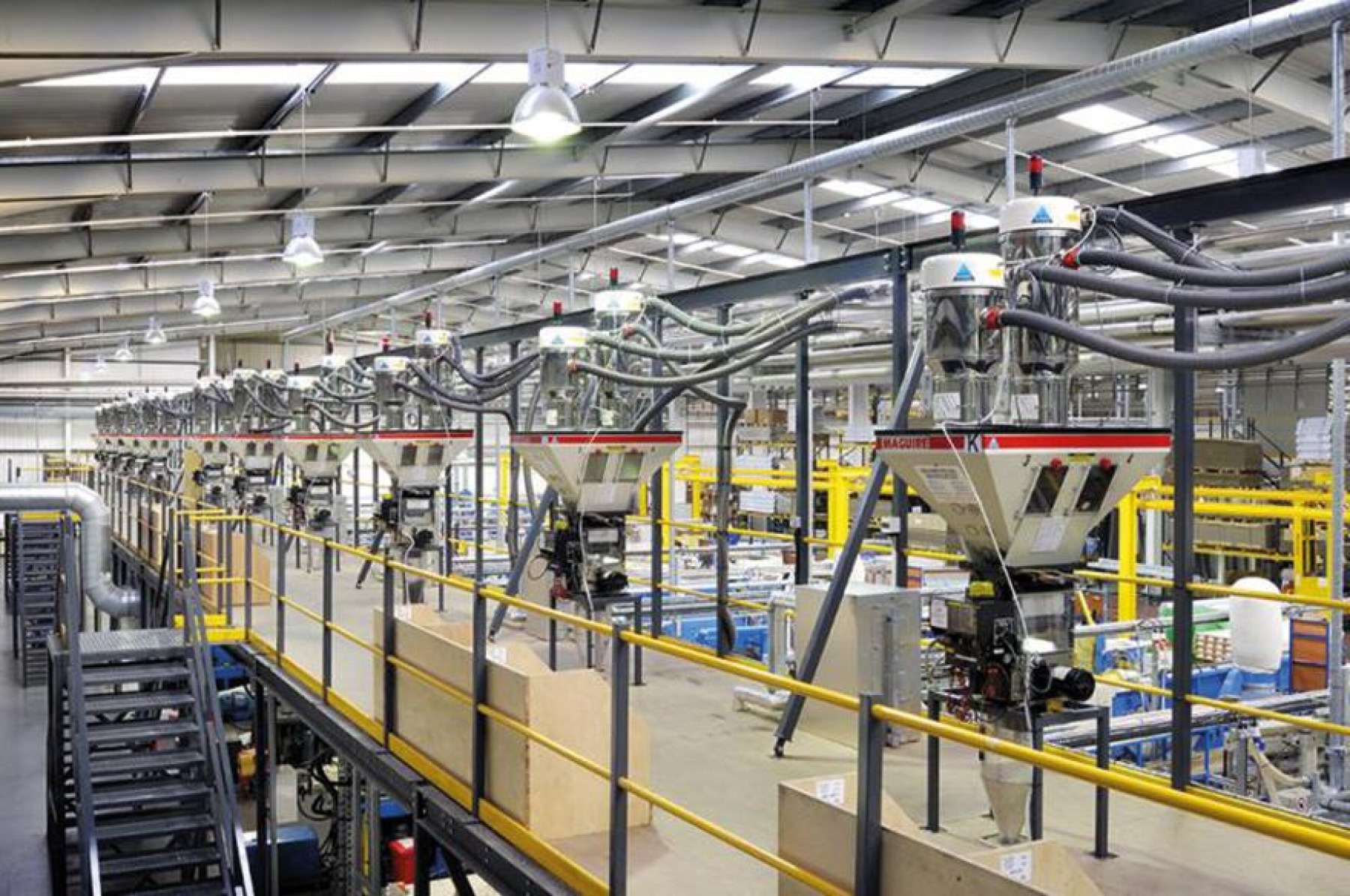
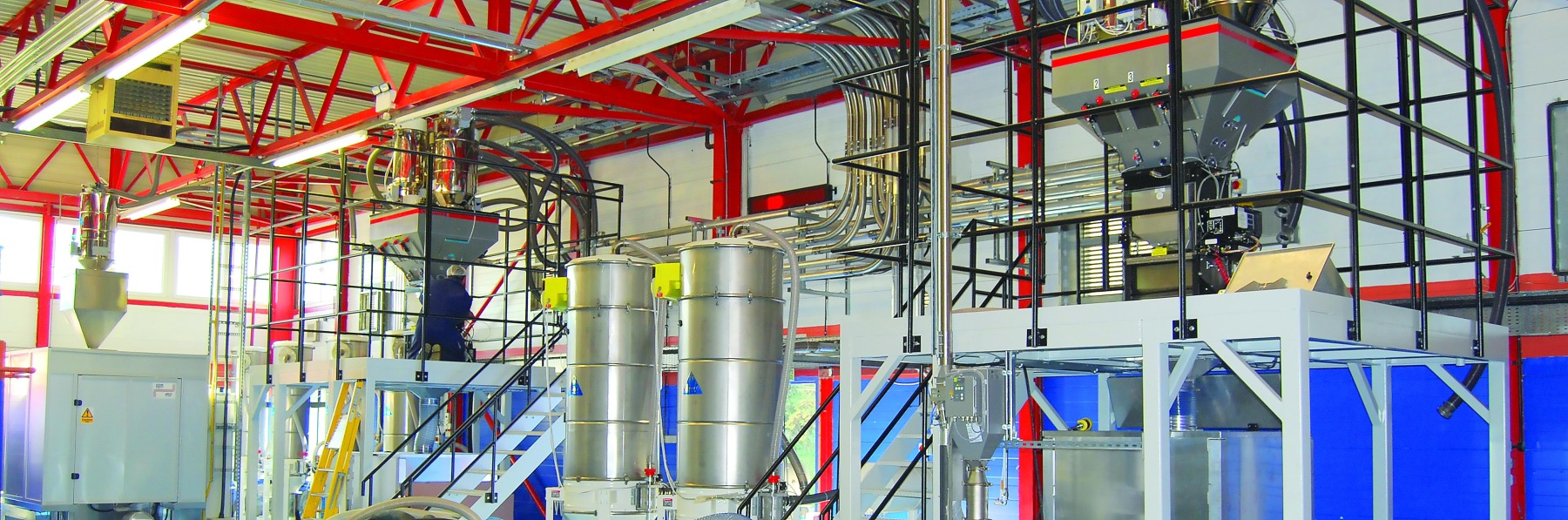
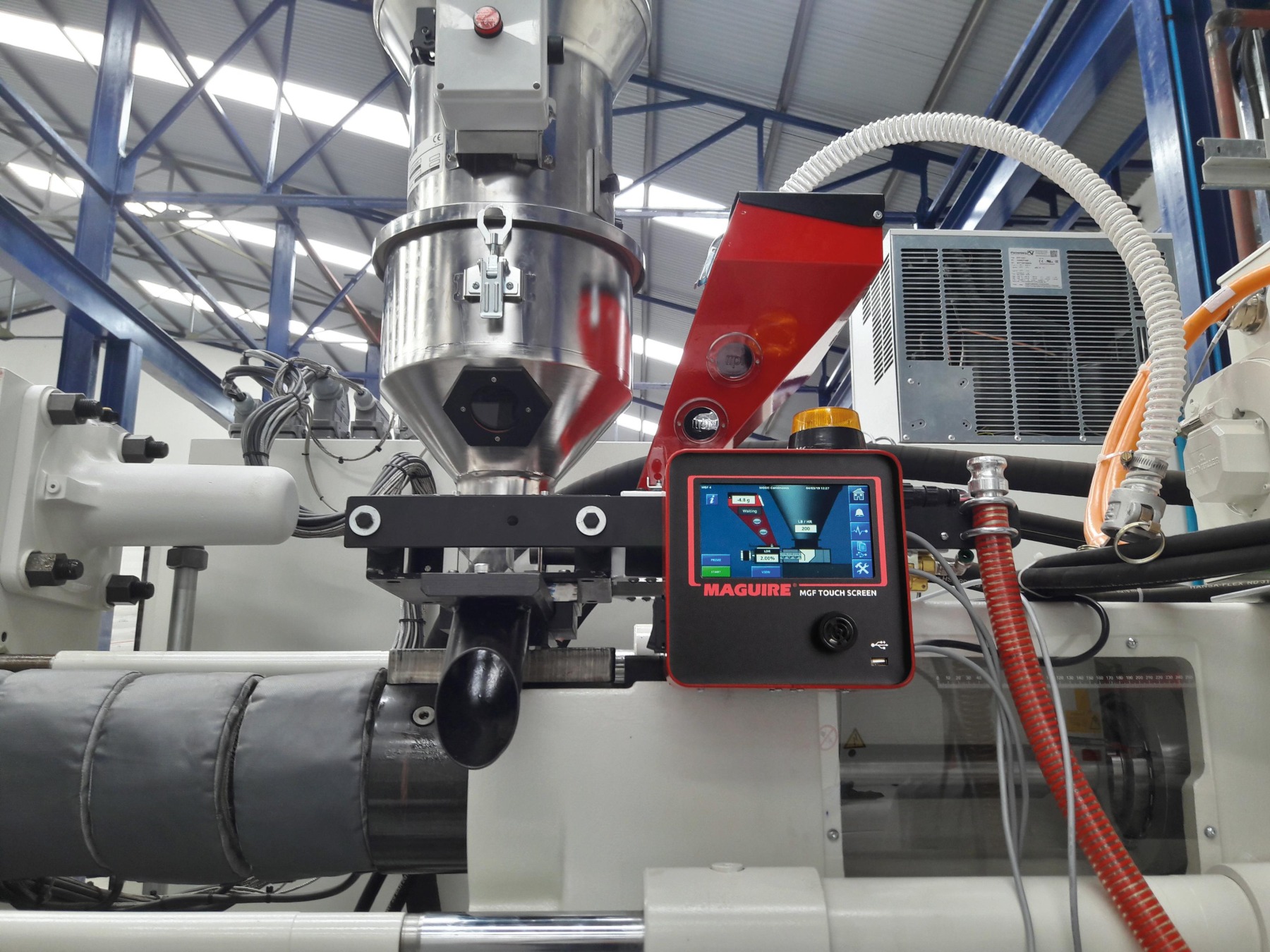
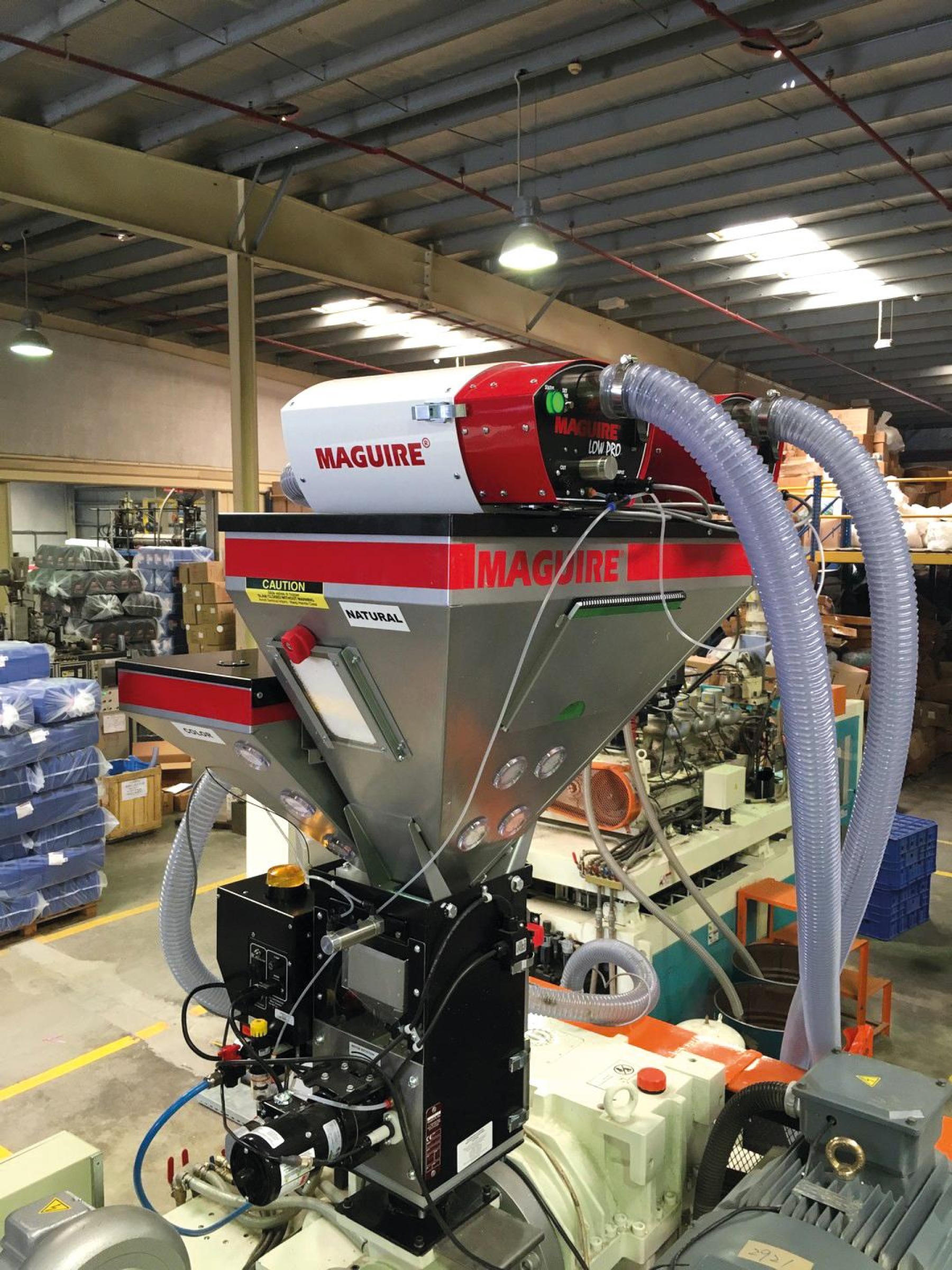
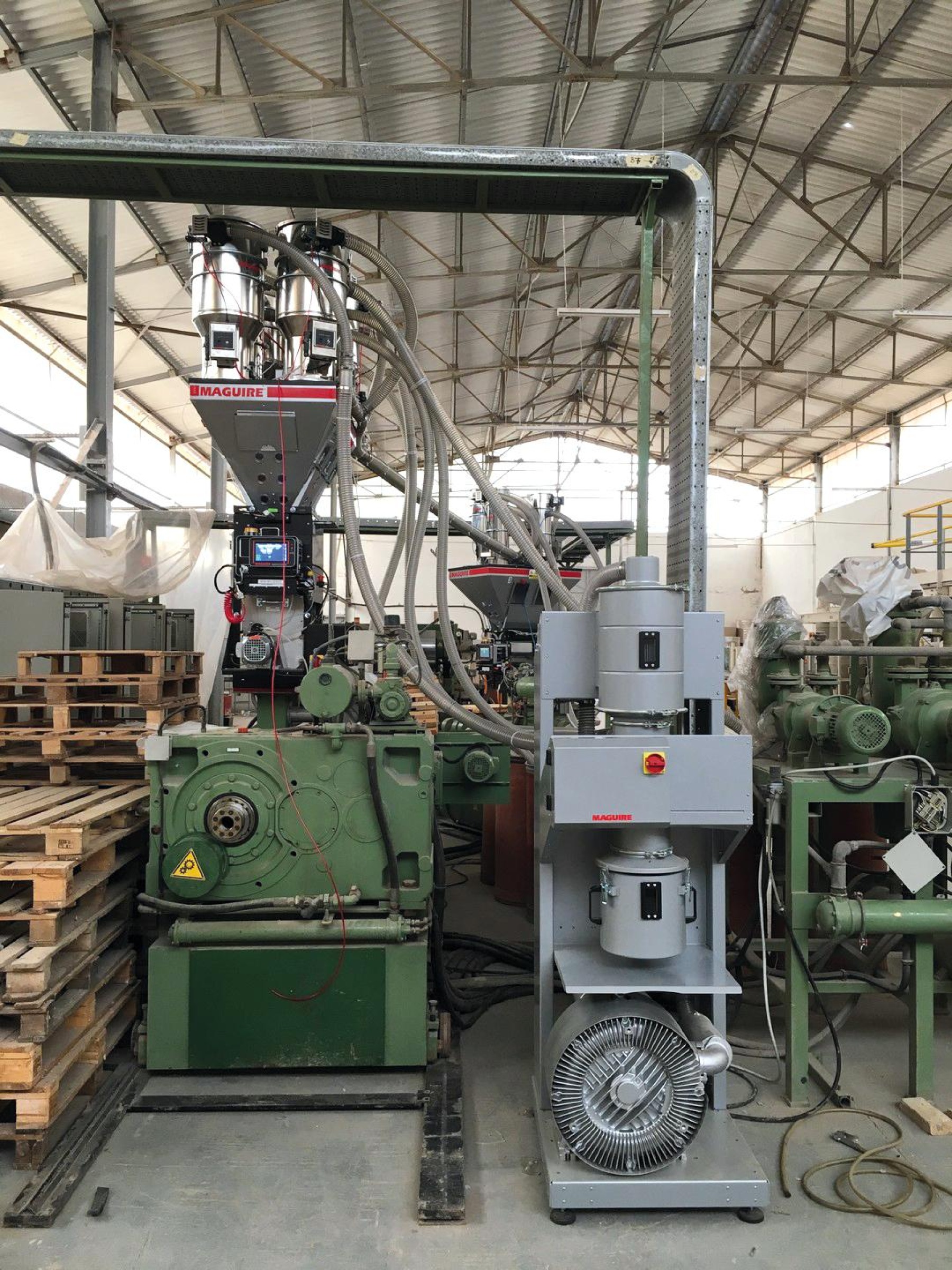
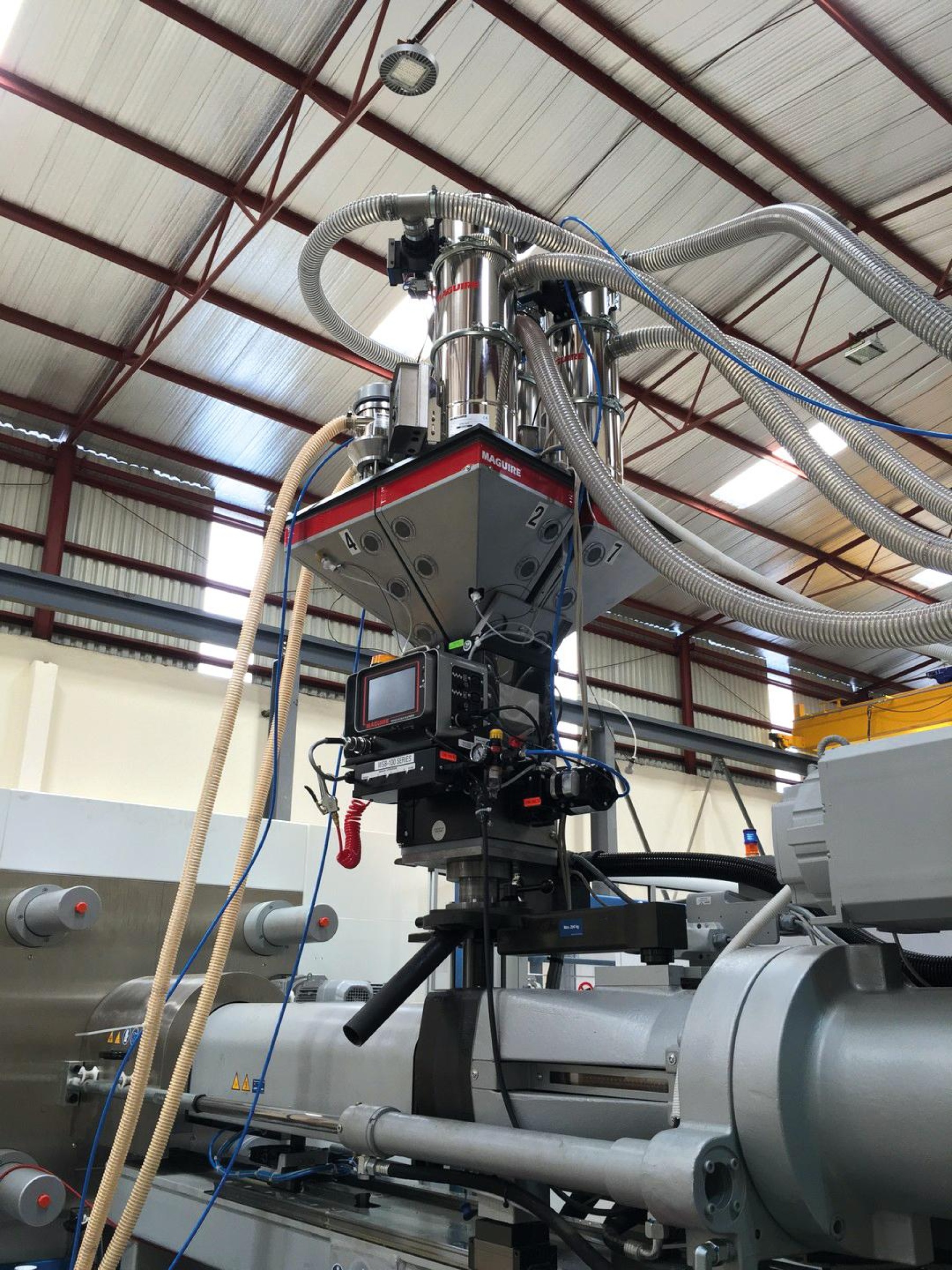
Headquartered in Aston, Pennsylvania, USA, Maguire manufactures gravimetric blenders and feeders, volumetric feeders, ULTRA low energy dryers, conveying systems, extrusion control systems, loss in weight extrusion control, and related auxiliaries.
Founded in 1977, Maguire Products operates seven manufacturing facilities in Aston, with seven international subsidiaries that service an extensive network of distributors globally.
Design Focus
The fundamentals of design for Maguire as a company since it was first launched in 1977 have always been accuracy, quick return on investment, and ease of use.
These 3 principles have stood the test of time and are reflected across our products: Manufactured with hardware that's robust and reliable, and with Software and Controls that are completely integrated to the hardware and have evolved consistently right through to today.

Maguire's Timeline


Steve's Vision - Intelligent Simplicity
At Maguire, we work hard every day to build technology for the plastics industry that's simple to use, yet operates intelligently.
Our focus for design in order of importance is performance, reliability, serviceability, ease of use, and then price.
This let's us focus on solving problems for our customer, that often result in creating new product categories for the plastics industry. It isn't what the customer wants, it's what they need: a customer asked for a simpler way to set up a volumetric feeder, so I created a gravimetric feeder.
Our philosophy is to treat everyone fairly from employees, suppliers, and customers as one cooperative team with mutual shared interests and successes.
Steve Maguire, Founder and President of Maguire Products

Maguire, Sustainability and the Circular Economy
The circular economy represents an alternative, more sustainable model to the traditional linear economy. The linear mode of operation of make, use, then dispose is increasingly being evolved to that of the circular economy.
With a circular economy, we keep resources in use for as long as possible, extract the maximum value from them while in use, then recover and regenerate products and materials at the end of their service life. As a result, a circular economy also offers a way to improve all of our mutual competitiveness and resource efficiency.
Maguire’s equipment from the early days has been designed to make it easier for processors to control and handle raw materials more efficiently. The unique characteristics of plastics enable them to play a major role on the road to a more sustainable and resource efficient future.
For Maguire, this has ranged from the earliest range of volumetric and liquid feeders, controlling primary resources accurately and using them efficiently.
Maguire's range of gravimetric blenders enable processors to fully maximize on the control of natural materials, and accurately blend and mix with in house regrinds, recycled materials and new technical materials, enabling further gains in product design and physical and mechanical product properties.
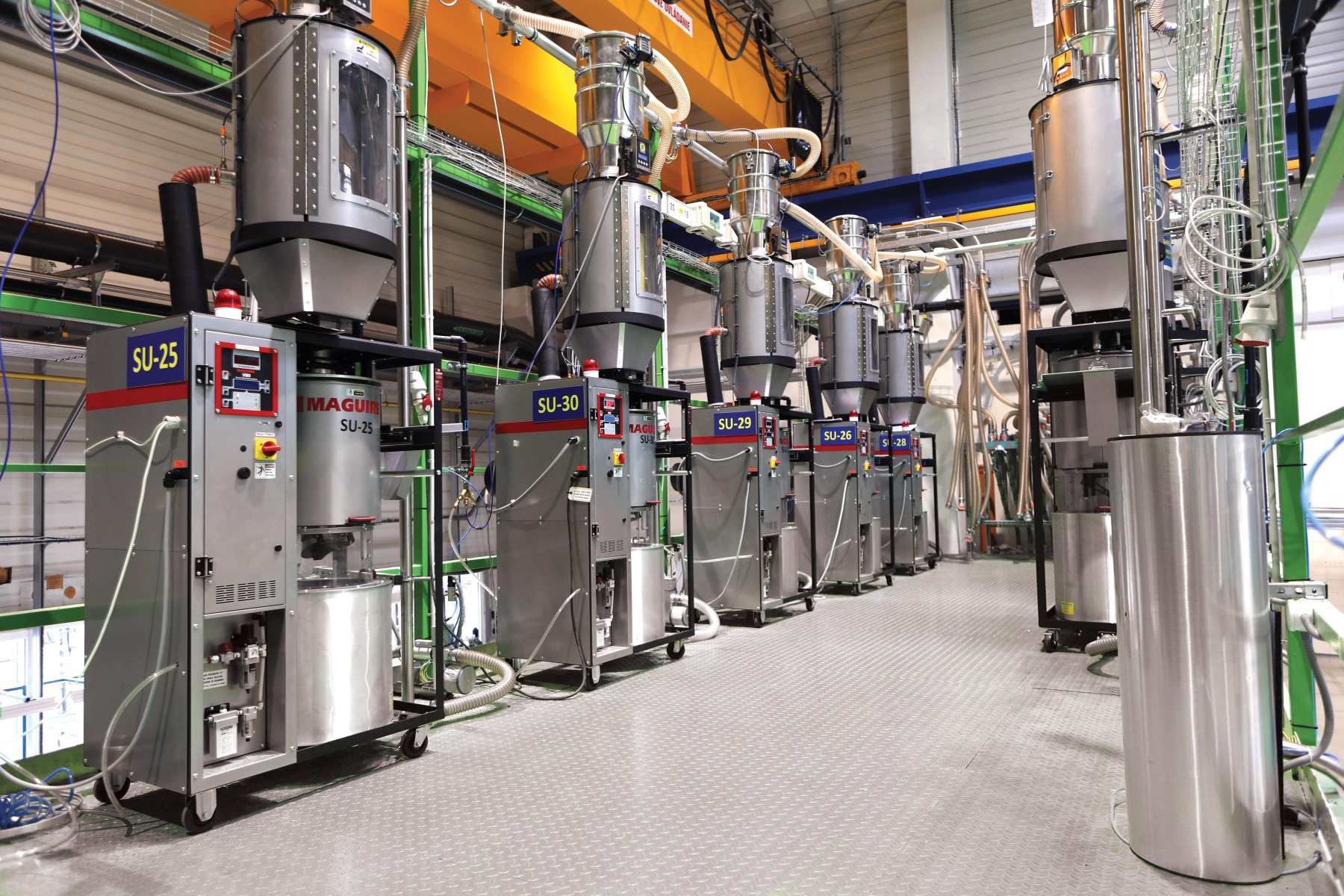
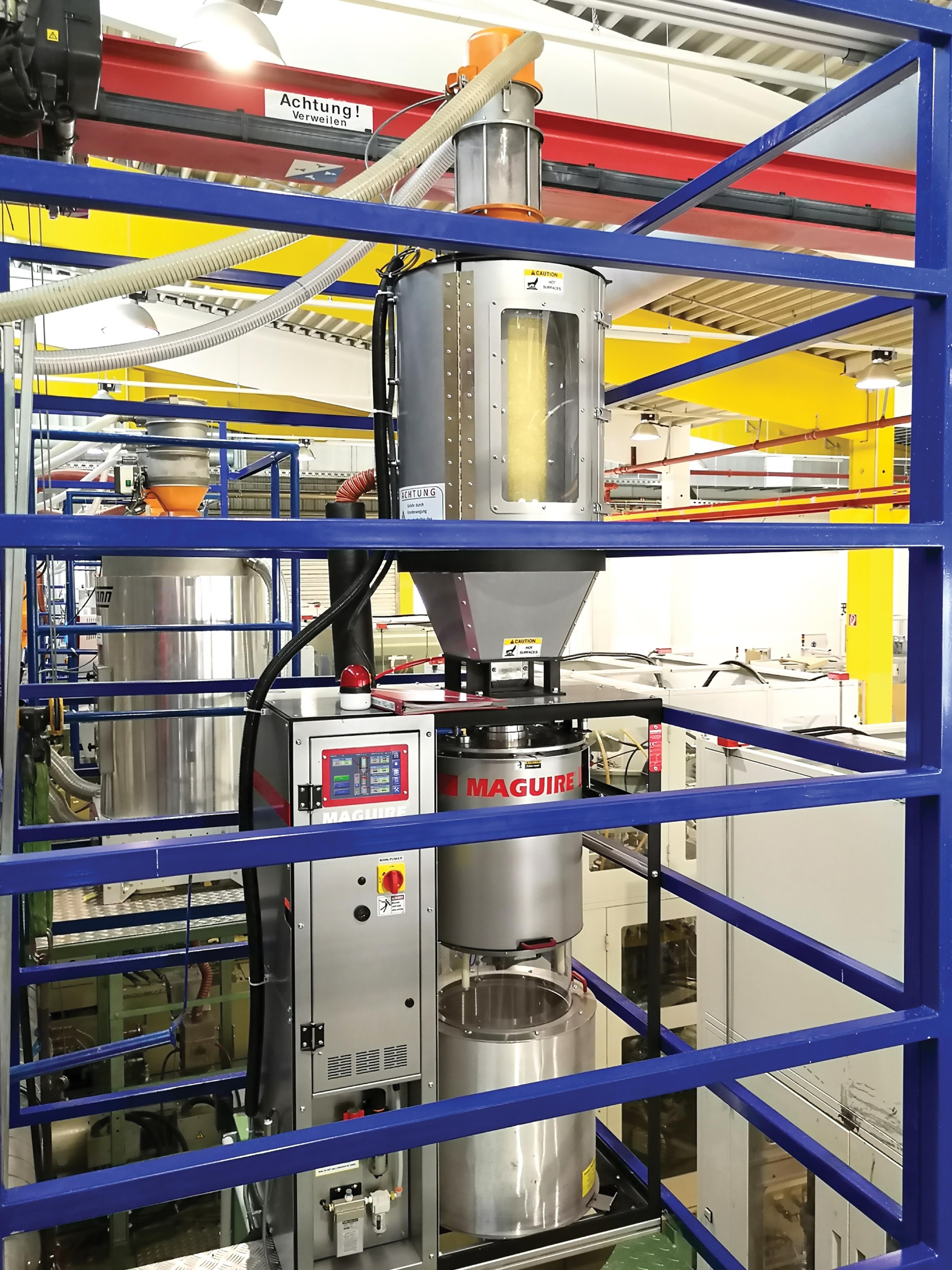
Maguire pioneered ULTRA dryers for the plastics industry for over 20 years. The ULTRA dryers primary benefit is that it’s the first in its class of ULTRA low energy dryers – saving up to 90% of the energy normally used by traditional drying systems.
In addition, the ULTRA dries prime and regrind materials typically up to 6 times faster than traditional systems, enabling processors to run difficult regrinds and re-use efficiently and effectively what otherwise could be scrap and go to landfill.
Lightweight, versatile and durable plastics can help save key resources such as energy and water in strategic sectors that include packaging, building and construction, automotive and renewable energy, to name but a few. In addition, plastics applications in packaging can help reduce food waste. However, to improve the circularity of plastics, it is essential to make sure that more and more plastic waste is recovered and doesn’t end up in landfill or in the environment.
In developing a roadmap for a circular economy, it's important to ensure that decisions around appropriate solutions are based on sustainability considered across the entire life cycle, rather than simply considering resource efficiency aspects only at the end of life of a product.
Plastics make a significant contribution to a circular economy and Maguire continue to work towards developing and evolving equipment that allows plastics to be reused more and more and evolve this for all our partners and customers.
Warranty Statement
All of Maguire products are guaranteed with an industry leading 5 Year Warranty program that underlines Maguire's commitment to our three basic design principals; accuracy, quick return on investment, and ease of use.
Our 5 Year Warranty program is not just a marketing exercise, it's as robust as the products we sell. It also underlines the commitment to our customers who have shaped and evolved the design of our products to how they are today.
We warrant all equipment to be free from defects in material and workmanship under normal use and service; our obligation under this warranty being limited to making good at our factory any equipment which shall within five (5) years after delivery to the original purchaser be returned intact to us, transportation charges prepaid, and which our examination shall disclose to our satisfaction to have been thus defective.
This warranty being expressly in lieu of all other warranties expressed or implied and of all other obligations or liabilities on our part, and Maguire Products neither assumes nor authorizes any other persons to assume for it any other liability in connection with the sale of its equipment.
Consumable items such as filters, pump tubing and wear surfaces on granulators are acknowledged to have shorter lifespan and are excluded from this warranty. Our liability under this warranty will extend to only equipment that is returned to our factory in Aston, PA, USA.
We always strive to satisfy our customers in whatever manner is deemed most expedient to overcome any problem they may have in connection with our equipment.
Speak to your local representative or local Maguire office for more information.